
VPN Split Tunneling (2026): Setup, Benefits & Real Risks
Quick answer: Split tunneling lets you choose which apps use the VPN and which go direct. It can boost speed and fix compatibility — but anything outside the tunnel is not protected, and misconfiguration can cause DNS/IP leaks.
People usually want split tunneling for one practical reason: keep the VPN where it matters while avoiding VPN side effects elsewhere. The catch is that you must be intentional. If you exclude the wrong apps, you effectively create a “privacy gap” without noticing.

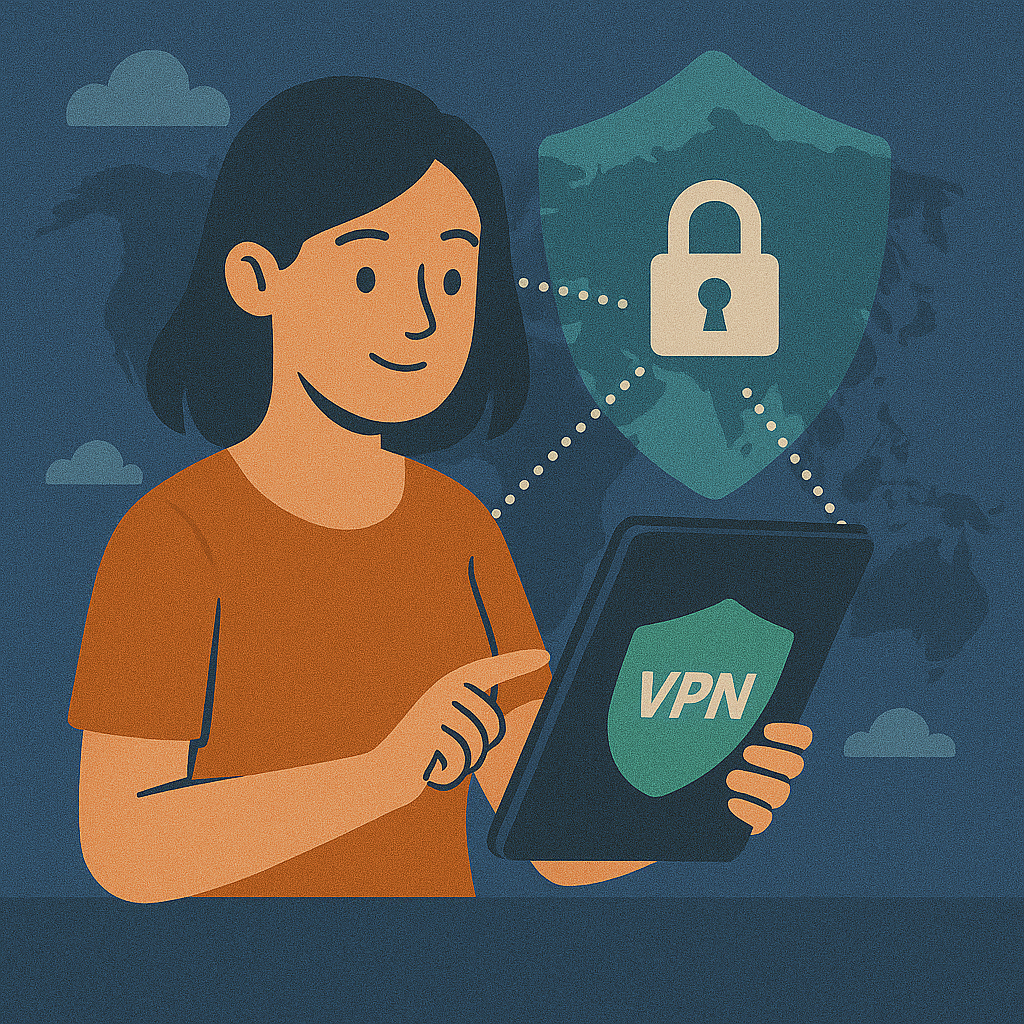
What split tunneling actually means (in plain English)
A normal VPN connection is “all or nothing”: once connected, all traffic goes through the encrypted tunnel. Split tunneling changes that. You define rules like:
- Only selected apps use the VPN (for example: a streaming app, a work tool, or a browser profile).
- Everything else goes direct (for example: local network devices, printer discovery, or system updates).
When split tunneling is worth using (and when it’s a bad idea)
Most people enable split tunneling for two reasons: performance (avoid unnecessary overhead) and compatibility (some services behave differently behind a VPN). In real life, the most common scenarios are streaming and gaming. If you’re tuning your setup for entertainment, start with VPN for streaming and then decide what should stay protected vs direct.
| Goal | What to route through VPN | What can go direct | Risk level |
|---|---|---|---|
| Streaming (geo-unlocks) | Streaming app / dedicated browser profile | Updates, local devices, work tools | Medium (location signals) |
| Gaming (lower ping) | Only what needs VPN (voice/chat, launcher, specific services) | Main game traffic (if VPN increases latency) | Medium (IP visibility) |
| Remote work | Work tools, secure browser, file sync | Personal entertainment traffic | Low–Medium (policy) |
| Local network | General internet browsing | Printers, casting, NAS discovery | Low |
| Banking compatibility | Most traffic except bank app/site | Bank app/site (direct) | High (sensitive data outside tunnel) |
Two split tunneling types: app-based vs route-based
VPN apps typically offer one (or both) of these approaches:
- App-based split tunneling: you select apps that should use (or bypass) the VPN. Common on Android and Windows.
- Route-based split tunneling: you define IP ranges / network routes (often on routers via policy-based routing).
The biggest risk: leaks from the “direct lane”
Split tunneling doesn’t automatically “break the VPN”. The real problem is that excluded apps can reveal your real network details: public IP, ISP DNS, and location signals. This matters even more if the excluded app is a browser (because WebRTC and DNS can betray you).
3-step safety check (do this every time you change split tunneling rules)
This is the routine that prevents “silent leaks”. It takes a few minutes and saves hours of guesswork later.
| Step | What to do | What a pass looks like | If it fails |
|---|---|---|---|
| 1) DNS leak | Connect VPN → run a DNS leak test | Only VPN DNS servers appear | Enable DNS leak protection, change protocol, retest |
| 2) WebRTC leak | Test WebRTC exposure in your browser | No local / real public IP shown | Disable WebRTC leak exposure settings or harden the browser |
| 3) IPv6 leak | Run an IPv6 leak test | No IPv6 leak (or IPv6 handled by VPN) | Disable IPv6 or enable VPN IPv6 support if available |
Performance vs privacy: how to choose what goes where
The simplest decision rule is: sensitive apps stay inside the VPN. Everything you exclude should be a conscious choice. If your main use case is gaming, start with VPN for gaming and decide whether the VPN helps or harms your ping (it depends on routing and server distance).
Fixes by platform (Windows, macOS, Android, iOS, routers)
Split tunneling looks different depending on your device and VPN provider. Some apps support it natively; others don’t. Use the table below as a practical checklist of what to verify.
| Platform | Split tunneling type | What to verify | Common pitfall |
|---|---|---|---|
| Windows | Usually app-based | Kill switch behaviour, DNS leak protection, per-app rules apply | Browser excluded → WebRTC/DNS exposure |
| macOS | Provider-dependent | Whether the VPN client truly supports exclusions (not just “bypass local”) | Split rules apply inconsistently across processes |
| Android | Often app-based | Always-on VPN + block connections without VPN for protected apps | Battery optimisation breaks tunnelled apps |
| iOS | Limited (provider-dependent) | Per-app VPN is rare; focus on leak tests and stability | Assuming iOS behaves like Android (it doesn’t) |
| Routers | Route-based / policy routing | Policy rules, DNS settings, device groups | DNS still goes via ISP unless forced |
FAQ
- What is VPN split tunneling?
- Split tunneling lets you decide which apps or destinations use the encrypted VPN tunnel and which connect directly to the internet.
- Is split tunneling safe?
- It can be safe if you keep sensitive apps inside the tunnel and verify DNS/WebRTC/IPv6 after changes. Anything excluded is not protected by the VPN.
- Does split tunneling cause DNS leaks?
- It can. If excluded apps use your ISP DNS resolver, your browsing destinations can be exposed. Enable DNS leak protection and retest.
- Which devices support split tunneling?
- Android often supports it in many VPN apps. Windows/macOS support varies. Routers typically use policy-based routing rather than per-app selection.
- Should I use split tunneling for streaming or gaming?
- Often yes — but keep your main browser and sensitive apps inside the VPN unless you fully understand the trade-off and have tested for leaks.
Conclusion
Split tunneling is one of the most useful VPN features — and one of the easiest to misuse. Treat it like a controlled exception, not a permanent “make VPN problems go away” button. Keep sensitive apps inside the tunnel, keep browsers inside unless you have a strong reason, and run DNS/WebRTC/IPv6 tests after every change.
Short video: VPN privacy explained in plain English
Key takeaway: the main job of a VPN is to separate who you are (your IP, ISP) from what you do (sites you access). A proper no-logs approach helps stop that bridge from being rebuilt later.
If the player doesn’t load, watch on YouTube: https://www.youtube.com/watch?v=rzcAKFaZvhE.
About the author
Denys Shchur is the creator of VPN World, focusing on practical, test-driven guides about VPNs, online privacy and secure remote work. He spends far too much time running speed tests and checking for DNS leaks, so you don’t have to.
Recommended VPN
Affiliate links (nofollow/sponsored).
Disclosure: VPN World may earn a commission if you subscribe via these links — without changing your price.